Spaces
Spaces in Rio split your sidebar by the parts of your day. Each space has its own pinned tabs, folders, Today tabs and two theme colors, and can use its own profile so its logins stay separate. Swipe to switch. Rio's Arc import brings your spaces over in one step, with their names, icons and colors.
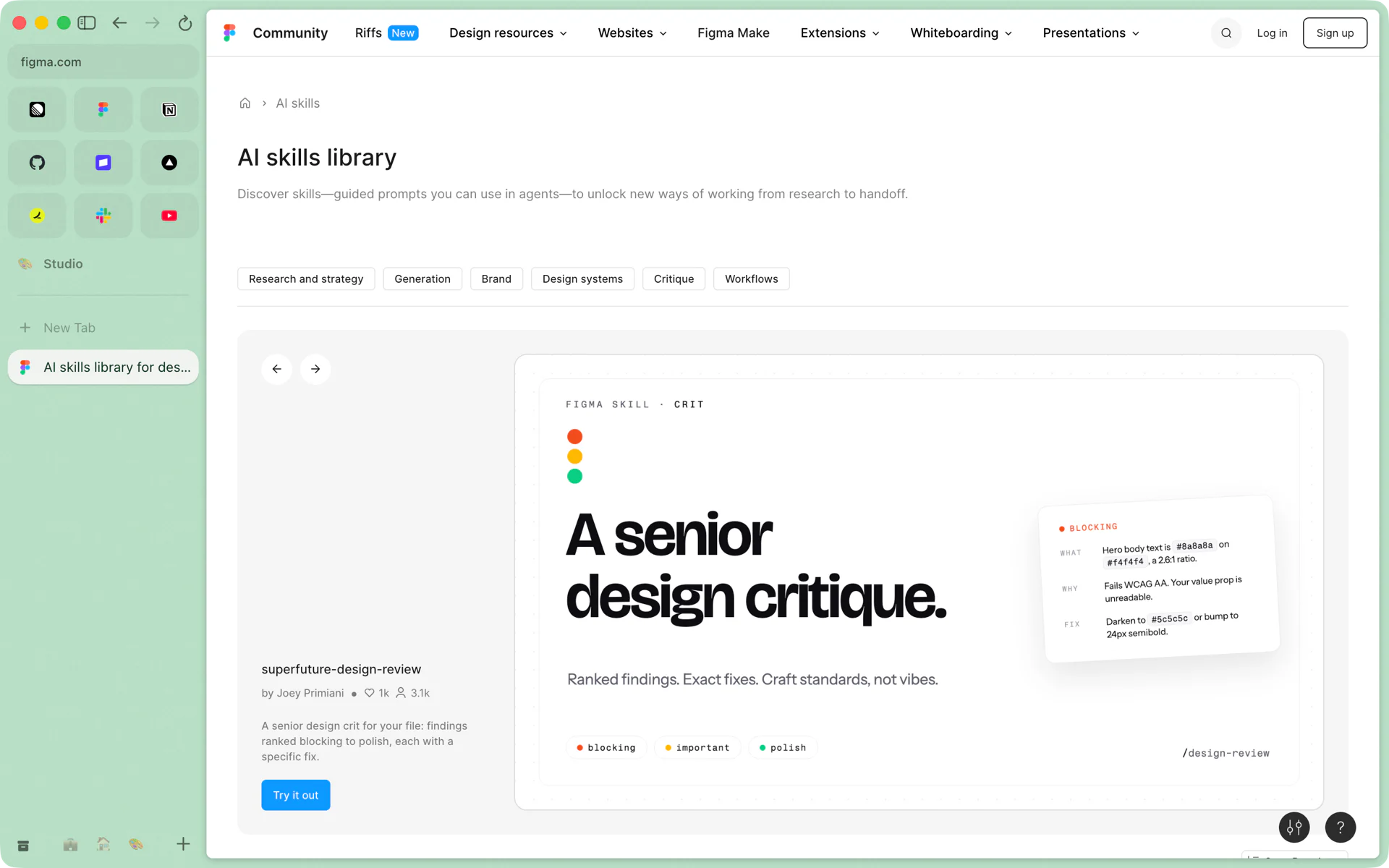
A day in three spaces
Say you keep three spaces: Work, Home and Studio. Work has Linear and Figma pinned, and a Launch folder with the Notion doc and the GitHub release page you check every morning. Your favorites, Slack and Vercel among them, sit in a grid at the top.
At six you swipe two fingers across the trackpad and land in Home. The sidebar changes to Home's own tabs and the whole window takes Home's colors. If Home uses its own profile, your work accounts are not signed in there. Studio is one more swipe, in soft green.
What a space holds
- Pinned tabs. They stay until you unpin them. A pinned tab remembers the page it was pinned on, so you can wander off and come back.
- Folders. Drag a tab to pin it, drop it into a folder, rename anything.
- Today tabs. Tabs you open land below New Tab. Rio archives these after 12 hours by default, or after 24 hours, 7 days or 30 days if you choose. Cmd+Shift+K clears them at once.
- Two colors. Each space has its own two theme colors, and the whole window follows when you switch.
- A profile. Spaces can share a profile or each have their own. Spaces on the same profile share favorites and logins.
Switching
- Swipe with two fingers. Each swipe moves one space.
- Click a space's icon in the bottom bar.
- Ctrl+1 to Ctrl+9 jumps to a space. Cmd+Option+Right and Cmd+Option+Left move to the next and previous one.
- The Library's Spaces view shows every space side by side.
Coming from Arc
Rio's Arc import brings your spaces over with their names, icons and theme colors, along with their profiles, pinned tabs, folders, favorites and Today tabs. See Move from Arc to Rio.
Questions
How do I switch spaces in Rio?
Swipe with two fingers on the trackpad, click a space's icon at the bottom of the sidebar, press Ctrl+1 to Ctrl+9 to jump to a space, or press Cmd+Option+Right and Cmd+Option+Left for the next and previous space.
Do spaces share logins?
Spaces on the same profile share logins and favorites. Give a space its own profile and it gets its own logins, so your work accounts stay out of your personal space.
What happens to Today tabs?
Rio archives Today tabs after 12 hours by default. You can choose 24 hours, 7 days or 30 days. Archived tabs are in the Library under Archived Tabs, and Cmd+Shift+K clears Today tabs at once.
Can I bring my Arc spaces over?
Yes. On first launch, Bring everything over imports your Arc spaces with their names, icons and theme colors, plus their profiles, pinned tabs, folders, favorites and Today tabs.
Sources
- Rio releases, build 1446: swiping between spaces (November 12, 2026)
- Rio releases, build 1055: the Library's Spaces view (November 11, 2026)
- Rio source, space shortcuts (commands/spaces.ts)
- Rio source, Today tab archive setting (settings.ts)
- Rio source, Clear Today Tabs and Library shortcuts (commands/archive.ts)
- Rio README, spaces, pinned tabs and favorites