Split view in a Mac browser: two to four pages side by side
Rio's split view puts two to four pages side by side in one window, and each pane keeps its own address bar. Press Ctrl+Shift+= to add a pane, or choose Add to Split View from a tab's menu in the sidebar. The panes show as one row in the sidebar, so they stay together.
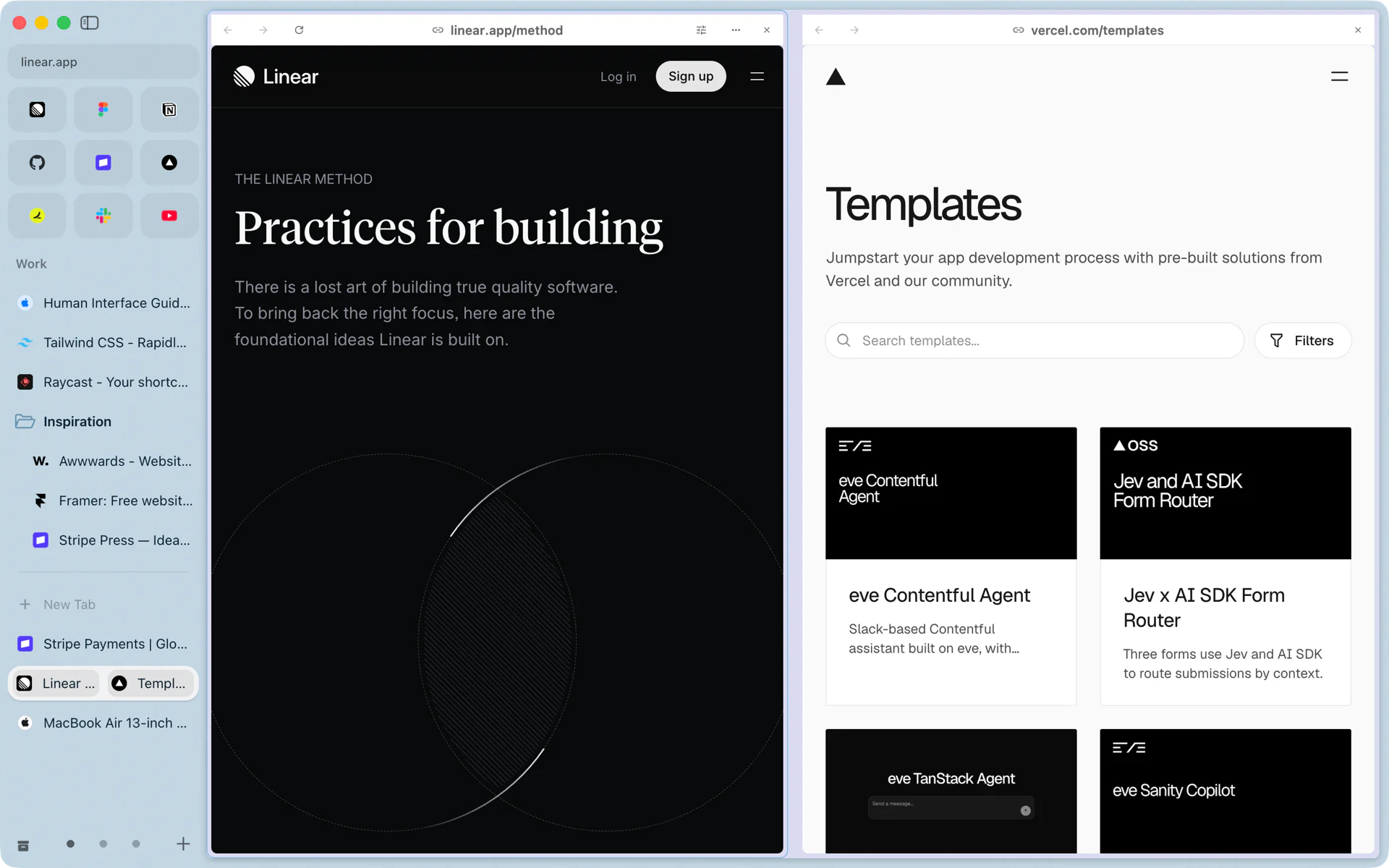
Two pages, one window
Say you are filling in an expense report and the receipts are in Gmail. Without a split you flip between two tabs and keep losing your place. With one, Gmail sits on the left and the report on the right, both live, both scrollable, and you copy the numbers across.
In Rio, press Ctrl+Shift+= with the report open. The command bar opens to pick the new pane's page: type gmail, choose your open Gmail tab, and it opens in a pane next to the report. Each pane has its own address bar. In the sidebar the two pages show as a single row, so they stay together while you work in other tabs.
Making a split
There are three ways in:
- Ctrl+Shift+= adds a pane to the page you are on and opens the command bar, where you pick an open tab, type an address or search. Press it again for a third and a fourth pane.
- A tab's menu in the sidebar has Add to Split View and Open in Split.
- The split button in Peek. If you Shift-click a link and it opens in Peek, the split button puts it next to your page instead of closing it.
A split holds two to four panes. Four works well on an external display: a doc, a spreadsheet, a dashboard and a chat, all in view.
Moving around
| Key | What it does |
|---|---|
| Ctrl+Shift+= | Add a pane |
| Ctrl+Shift+1 to Ctrl+Shift+4 | Jump to pane 1 to 4 |
| Ctrl+Shift+] | Next pane |
| Ctrl+Shift+[ | Previous pane |
| Ctrl+Shift+- | Take the current pane out of the split |
View, Expand Current Split gives the pane you are working in most of the room, while the others keep their minimum width. Choose it again and the panes even out.
How splits fit the sidebar
A split is one row in the sidebar. When Tidy Tabs groups your Today tabs, the pages of a split stay together, filed under the site of the split's first page.
Same keys as Arc
Arc's Keyboard Shortcuts page lists Ctrl+Shift+Plus to add a split view, Ctrl+Shift+Minus to close one and Ctrl+Shift+1, 2, 3 to switch focus between panes. Rio uses the same keys, so nothing to relearn. If you prefer others, Settings, Shortcuts lets you change any of them.
Split view and Peek together
Split view is for pages you want side by side for a while. Peek is for a quick look: Shift-click a link and it opens in a card over your page. When the quick look turns into real work, Peek's split button moves the page into a split without losing your place. More in Peek: preview a link without leaving your tab.
Questions
How many pages can a split view hold in Rio?
Two to four. Ctrl+Shift+= adds a pane each time, up to four.
How do I move between panes with the keyboard?
Ctrl+Shift+1 to Ctrl+Shift+4 jumps to a pane. Ctrl+Shift+] and Ctrl+Shift+[ move to the next and previous one.
How do I take a page out of a split?
Press Ctrl+Shift+- on the pane you want out. It goes back to being its own tab.
Are these the same keys Arc used?
Yes. Arc's Keyboard Shortcuts page lists Ctrl+Shift+Plus to add a split view, Ctrl+Shift+Minus to close one and Ctrl+Shift+1, 2, 3 to switch focus. Rio uses the same keys.
Sources
- Rio source, split view shortcuts and sidebar menu items (commands/split.ts)
- Rio source, split view holds 2 to 4 panes (split.ts)
- Rio source, Tidy Today keeps a split's tabs together (tidy.ts)
- Rio source, Open Peek as Tab (commands/multitask.ts)
- Arc Help Center, Keyboard Shortcuts (archived July 25, 2026)