How to export your Arc spaces, pinned tabs and favorites
Arc can save your sidebar as a Markdown file of links from Settings, Advanced, Export Data, and you then add each link to a new browser by hand. Rio skips the file: it reads Arc's sidebar on your Mac and rebuilds your spaces, pinned tabs, folders and favorites in one step, with names, icons and colors.
Arc's way: a file of links
Arc has an export built in. On a Mac:
- Choose Arc, Settings in the menu bar.
- Select Advanced.
- Select Export Data.
- Pick where to save the file and select Save.
Arc saves a file named Arc Data Export.md. Arc's help center describes it as a section for each space, listing your favorites, pinned tabs, folders and other sidebar tabs as links. It also says the export is a list of links rather than a bookmarks file, so you open it in a text editor and add the links you want to keep to your new browser yourself.
For a single folder there is a shortcut: right-click the folder in Arc's sidebar and choose Copy All Links. Hold Option while the menu is open and you get Copy All Links as Markdown, which keeps the titles.
My Arc setup was 4 spaces, 38 pinned tabs and 29 favorites. As an export, that is 67 links to put back one at a time, and none of them comes back signed in.
Rio's way: read the sidebar directly
Rio doesn't need the export. Your whole Arc sidebar already lives in one file on your Mac, ~/Library/Application Support/Arc/StorableSidebar.json, and Rio reads it on first launch. It rebuilds what you had:
- Each space, with its name, icon and theme colors
- Pinned tabs in their folders
- The favorites grid at the top of the sidebar
- Your Today tabs
- Your profiles, so spaces that used different Arc profiles keep separate logins
The same import brings bookmarks, history, saved passwords, sign-ins (cookies, site storage and site permissions), saved addresses and your default search engine. It lists your Chrome Web Store extensions so you can reinstall each with one click.
Step by step
- Download Rio from the download link and drag it into Applications. Rio is made for the Mac: Apple silicon, macOS 13 or later.
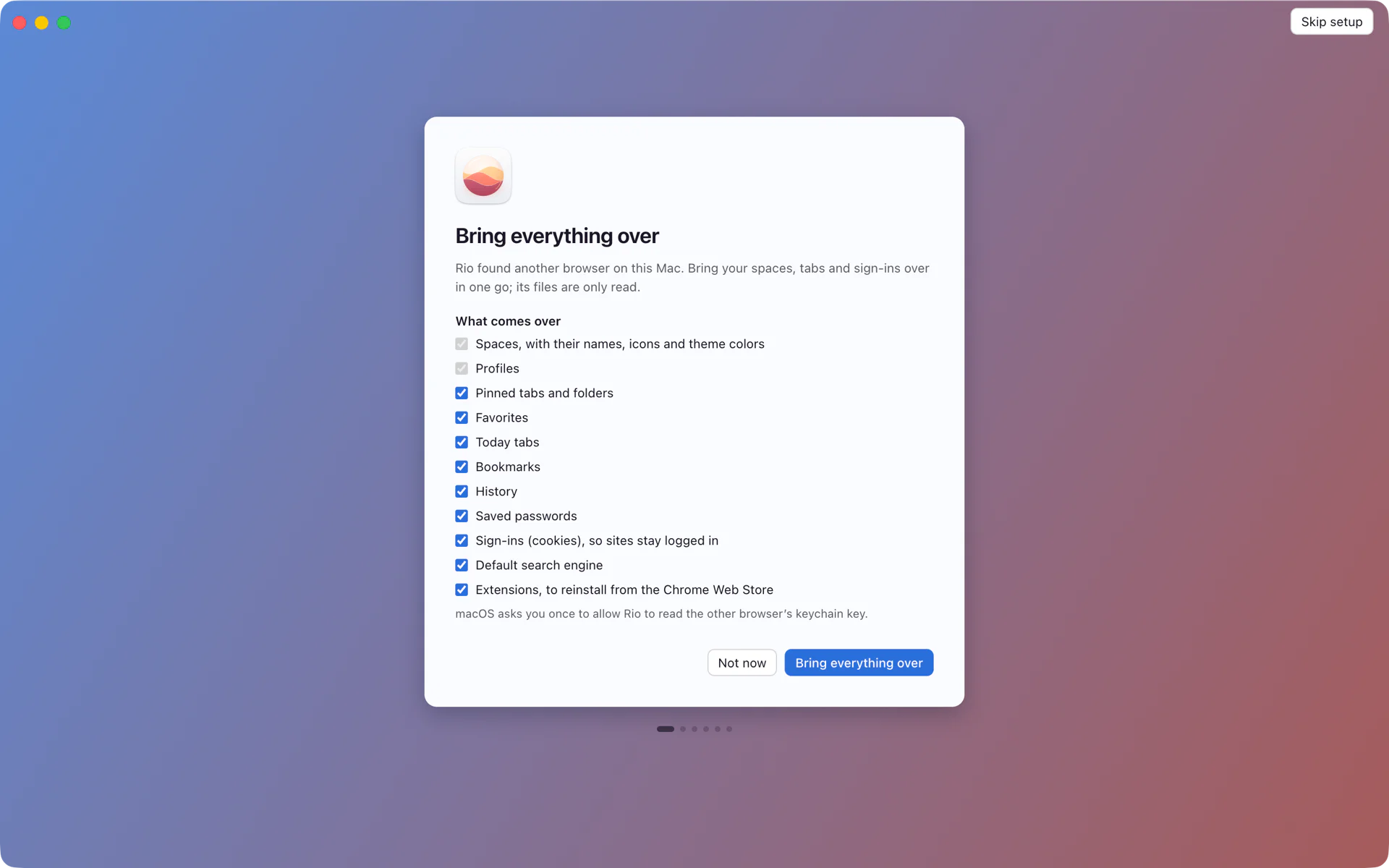
- Open Rio. The first screen says it found another browser on this Mac.
- Click Bring everything over. Every item starts checked. Spaces and profiles always come over; uncheck anything else you want to leave behind.
- Allow the keychain prompt so your passwords and sign-ins come along.
- Read the summary. It counts what came over, such as profiles, spaces, pinned tabs, Today tabs and favorites.
Nothing is uploaded. Rio reads Arc's files on your Mac and writes them into its own profile on the same Mac.
Where everything lands
- Spaces sit in the bar at the bottom of the sidebar. Swipe with two fingers to move between them.
- Favorites fill the grid at the top.
- Pinned tabs and folders sit under the favorites in each space. A pinned tab remembers the page it was pinned on.
- Today tabs sit below New Tab. Rio archives them after 12 hours by default, or after 24 hours, 7 days or 30 days if you choose.
- Bookmarks become a pinned folder named Imported bookmarks in the first space of each profile.
To see it all at once, open the Library with Cmd+Shift+L and pick Spaces. It shows every space side by side.
Want both? Run both
Rio reads Arc's files without changing them, so nothing stops you from running Arc's Export Data for a copy on disk and Rio's import for a working sidebar. Arc's help center says that after December 22, 2026 you can't open Arc to reach your spaces and tabs, so do both before then.
Questions
Where does Arc keep my spaces and pinned tabs?
In one file on your Mac: ~/Library/Application Support/Arc/StorableSidebar.json. Rio reads that file to rebuild your sidebar.
Do I need to export from Arc before importing into Rio?
No. Rio reads Arc's sidebar straight from your Mac. You can still run Arc's Export Data as well if you want a list of links on disk.
Does Arc's export bring my logins?
Arc's export is a list of links. Rio's import also brings your saved passwords and sign-ins, so the sites in your pinned tabs open logged in.
Can I run Rio's import again later?
Yes. Open Settings, General, Import from Arc. If you imported before, Rio asks whether to replace the earlier import.