Peek: preview a link without leaving your tab
Peek opens a link in a card over the page you are on, so you can read it and get back without a new tab. In Rio, Shift-click any link. Links from your favorites and pinned tabs to other sites open in Peek too. Keep a Peek with Cmd+Shift+O, or put it in a split next to your page.
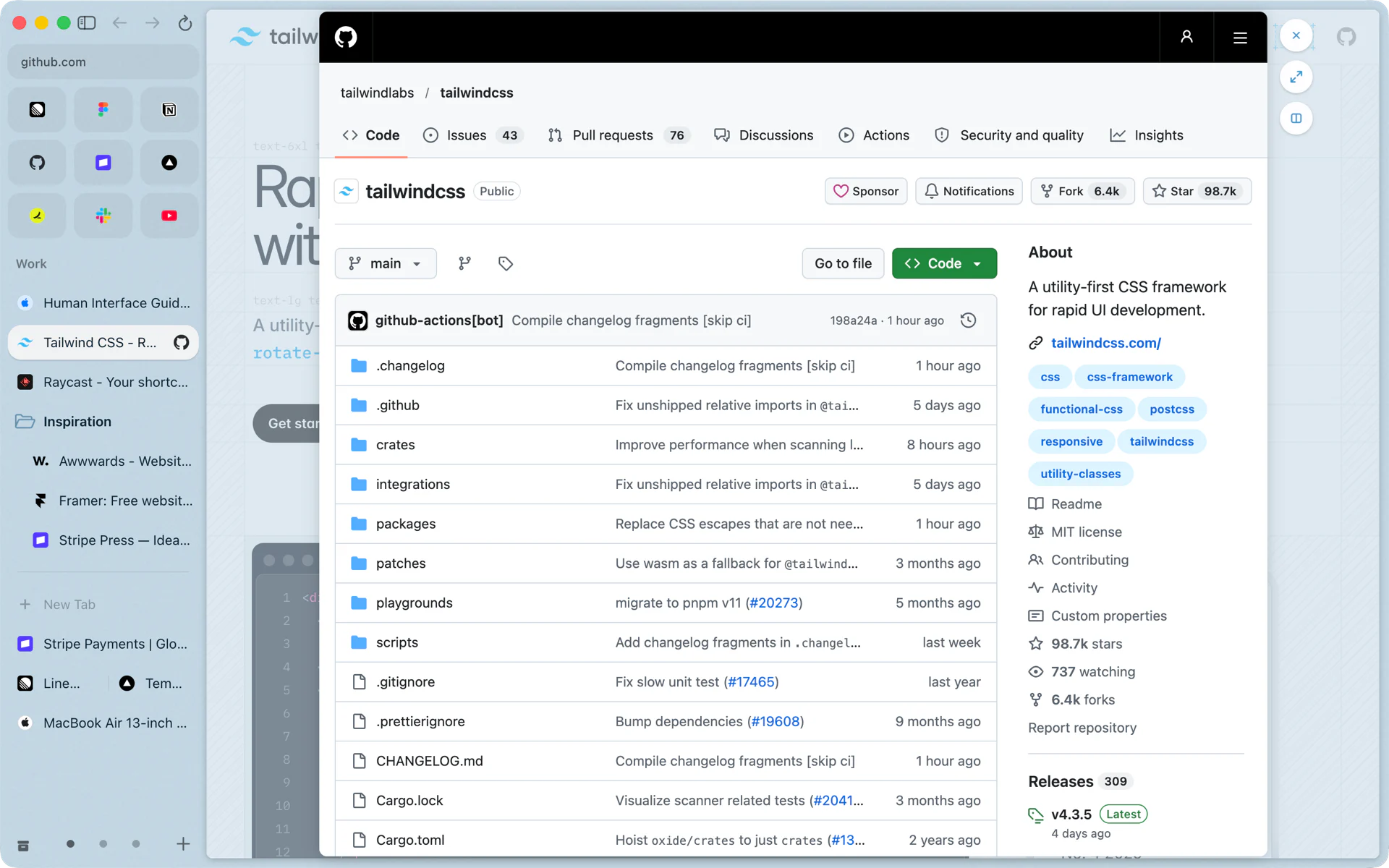
A quick look, then back
You are reading the Tailwind CSS docs and a sentence links to a GitHub repo. You want to see the README, not lose your place. Shift-click the link. The repo opens in Peek, a card over the page you were reading. Skim it, click the close button, and you are back on the same line of the docs.
No new tab was opened, so there is nothing to clean up afterwards.
Three ways a link opens in Peek
- Shift-click any link. On by default, in Settings, Links as Open a Peek when clicking links with Shift held.
- Click a link to another site from a favorite or a pinned tab. Your pinned Gmail tab stays on Gmail when you open a link in an email; the link opens in Peek over your inbox. This one only affects favorites and pinned tabs, and it is on by default too.
- Hold Shift over a link. This is Hover Previews. Rest the pointer on a link with Shift held for a moment and the page opens in Peek without a click. Move the pointer away and that preview closes by itself. A Peek you clicked open stays until you close it.
Keep it, split it or close it
A Peek card has three buttons along its edge:
- Close. Back to your page.
- Open as a tab, also Cmd+Shift+O. The page moves into your sidebar as a tab.
- Open in a split. The page goes next to yours, each with its own address bar. See Split view in a Mac browser.
That makes Peek a good fit for links you aren't sure about. Most of them you close. The few that turn into work, you keep with one key.
Summaries from Apple's on-device model
On a Mac with macOS 26 and Apple Intelligence turned on, a Hover Preview also shows two or three sentences about the page at the top of the card. Rio reads up to 6,000 characters of the page's text and asks Apple's on-device model for the summary. The text is read in an isolated world, so the page's own scripts can't see or change the request. The model runs on your Mac, so the text you are previewing isn't sent anywhere to be summarized.
On other Macs, Hover Previews show the page in Peek without a summary. The switch is in Settings, AI features.
Peek in Rio and in Arc
If you used Peek in Arc, Rio works the way you expect: Shift-click opens a link over your page, and links from pinned tabs to other sites open in Peek. Arc's sunset FAQ lists Peek among the Arc features that aren't available in Dia, and suggests opening the link in a tab and using split view instead. Rio keeps Peek and has split view next to it.
Turning it off
Open Settings, Links. Two switches control Peek:
- Open a Peek when clicking links with Shift held
- Open a Peek when clicking links to other sites (favorites and pinned tabs only)
Hover Previews has its own switch in Settings, AI features.
Questions
How do I open a link in Peek?
Shift-click it. Links to other sites from your favorites and pinned tabs open in Peek too. You can turn either off in Settings, Links.
How do I keep a page I opened in Peek?
Press Cmd+Shift+O or click Open as tab to make it a tab, or click Open in split to put it next to your page.
Can I turn Peek off?
Yes. Settings, Links has a switch for Shift-click and a switch for links from favorites and pinned tabs. Both are on by default.
What is a Hover Preview?
Hold Shift over a link for a moment and the page opens in Peek without a click. On macOS 26 with Apple Intelligence, Apple's on-device model adds a two or three sentence summary at the top.
Sources
- Rio source, Peek settings (settings.ts)
- Rio source, the Links settings tab (LinksPane.tsx)
- Rio source, Open Peek as Tab (commands/multitask.ts)
- Rio source, Hover Previews in the AI tab (AiPane.tsx)
- Rio source code on GitHub, including how Peek reads a page for its summary
- Arc Help Center, Arc sunset FAQ (Arc features not available in Dia)