Site controls
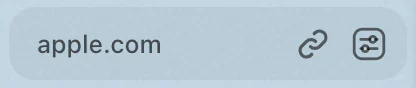
Site controls in Rio collect what you can change about the site you are on. Click the sliders button beside the address to see how many ads and trackers Rio blocked, switch blocking off for that site, manage its permissions and extensions, take a screenshot or tweak the page. Rio blocks ads and trackers by default.
A recipe without the clutter
You open a recipe. Rio blocked the page's ads and trackers before they loaded, so the steps are easy to follow, but a strip of suggested videos still sits beside the ingredients. Press Cmd+T, run Zap Elements and click the strip. It disappears, and Rio hides it on every later visit to that site. To see how much Rio blocked, click the sliders button at the right end of the address and choose All Site Settings from its three-dot menu. The count for this page is at the top.
What is in the panel
- Four tiles: Share, Site tweaks, Screenshot and Capture text.
- Extensions: the button of each extension you installed, with its badge, and a plus that opens the Chrome Web Store.
- Settings: the permissions you allowed or blocked for this site, such as camera or location.
- The connection: whether the page reached you securely.
- The three-dot menu: Clear Cache, Clear Cookies, Manage Extensions, Add Extension and All Site Settings.
All Site Settings opens Rio's full controls for the site in the same panel: the blocker's switch and count, Site tweaks, every permission, and zoom.
The blocker
Rio blocks ads and trackers on its own, with no extension. It uses the EasyList and EasyPrivacy filter lists, is on by default, and works in every tab, every frame and private windows. It also hides the empty boxes ads leave behind. The first page you open after launch is blocked from its first request.
Turning blocking off applies to that one site. You can also type turn off blocking or turn on blocking in the command bar.
Site tweaks and Zap
Site tweaks change how one website looks for you, and Rio applies them every time you visit:
- Style: hue, invert, contrast, brightness, saturation, font and text size, with no code.
- CSS and JS: your own code for the site, previewed as you type.
- Zap: click elements on the page to hide them, such as a cookie banner or a sidebar of suggestions. Restore all brings them back.
Your tweaks are listed in the Library under Site tweaks. Settings, Advanced has a switch that turns all of them off.
Developer Mode
For a site you are building, Developer Mode adds a strip with the console, developer tools, the element picker, a capture button and a reload that skips the cache. It is on by default for localhost and 127.0.0.1, and you can switch it on for any site in the panel.
Questions
Does Rio block ads?
Yes. Rio has an ad and tracker blocker built in, on by default, using the EasyList and EasyPrivacy filter lists. It works in every tab and in private windows, with no extension to install.
How do I turn blocking off for one site?
Click the sliders button, open the menu under the three dots, choose All Site Settings and switch off Block ads and trackers. Or type turn off blocking in the command bar. The site's open pages reload.
How do I change a site's camera or location permission?
Open site controls and choose All Site Settings. Every permission for that site is listed there, with zoom under it.
What are Site tweaks?
Changes you save for one website: colors, font and text size from simple controls, your own CSS or JavaScript, and elements you hid with Zap. They come back each time you visit.
Sources
- Rio source, the site controls panel and its All Site Settings view (SiteControlsPopover.tsx)
- Rio source, the sliders button at the end of the address (SiteControlsButton.tsx)
- Rio source, Share, Screenshot, Capture text and Developer Mode (ipc/extensions.ts)
- Rio source, Turn Off Blocking on This Site and Open Extensions (commands/extensions.ts)
- Rio source, Site Tweaks and Zap Elements (commands/tweaks.ts)
- Rio source, the Site tweaks editor (TweakEditor.tsx)
- Rio source code on GitHub, including the built-in blocker and its EasyList and EasyPrivacy lists