Themes
Each space in Rio can have its own theme. The theme editor puts up to three colors on a color wheel, with 45 preset colors, an intensity slider and a grain dial, and the whole window follows when you switch spaces. Rio is a free, open-source Chromium browser for Mac with an Arc-style sidebar.
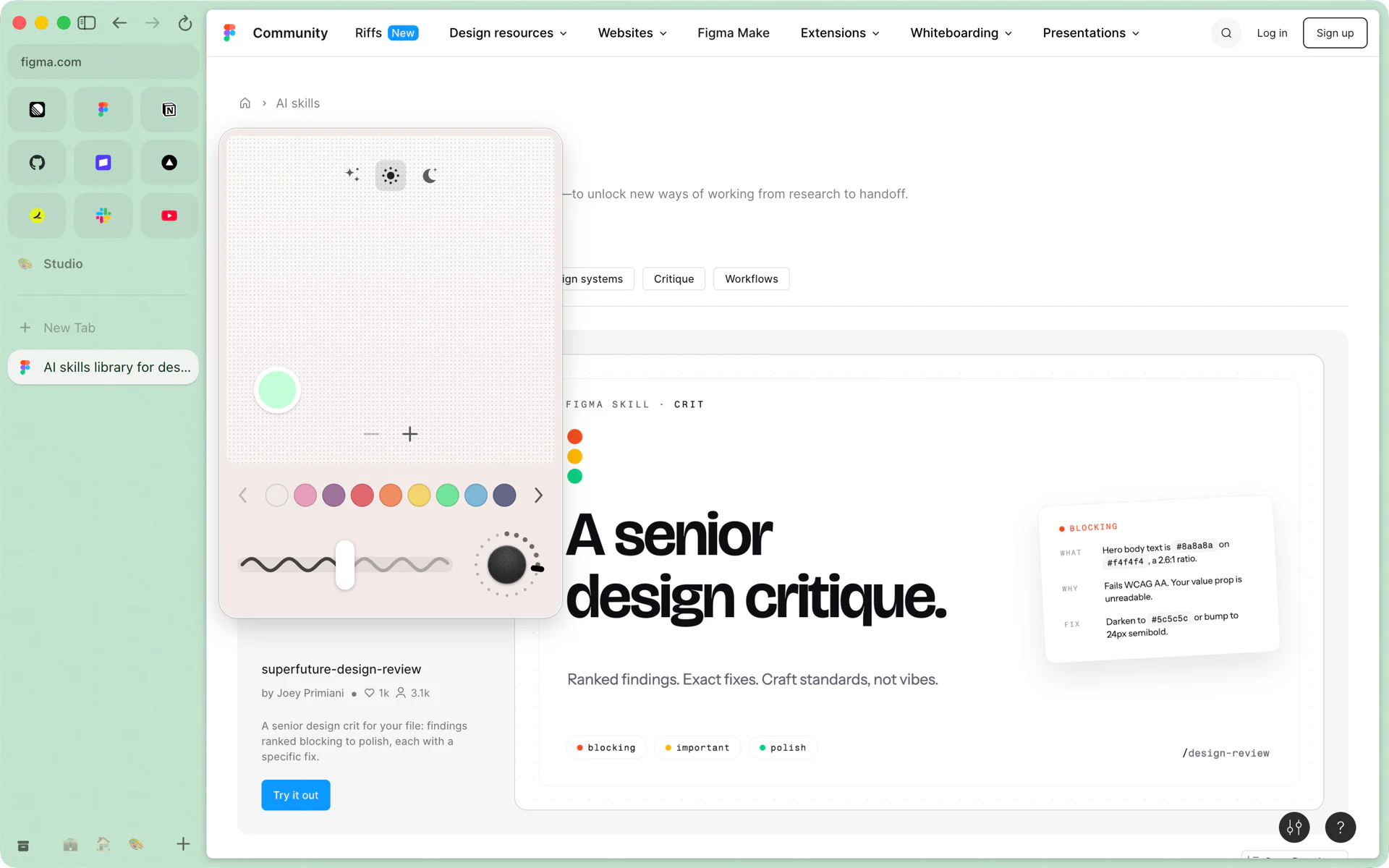
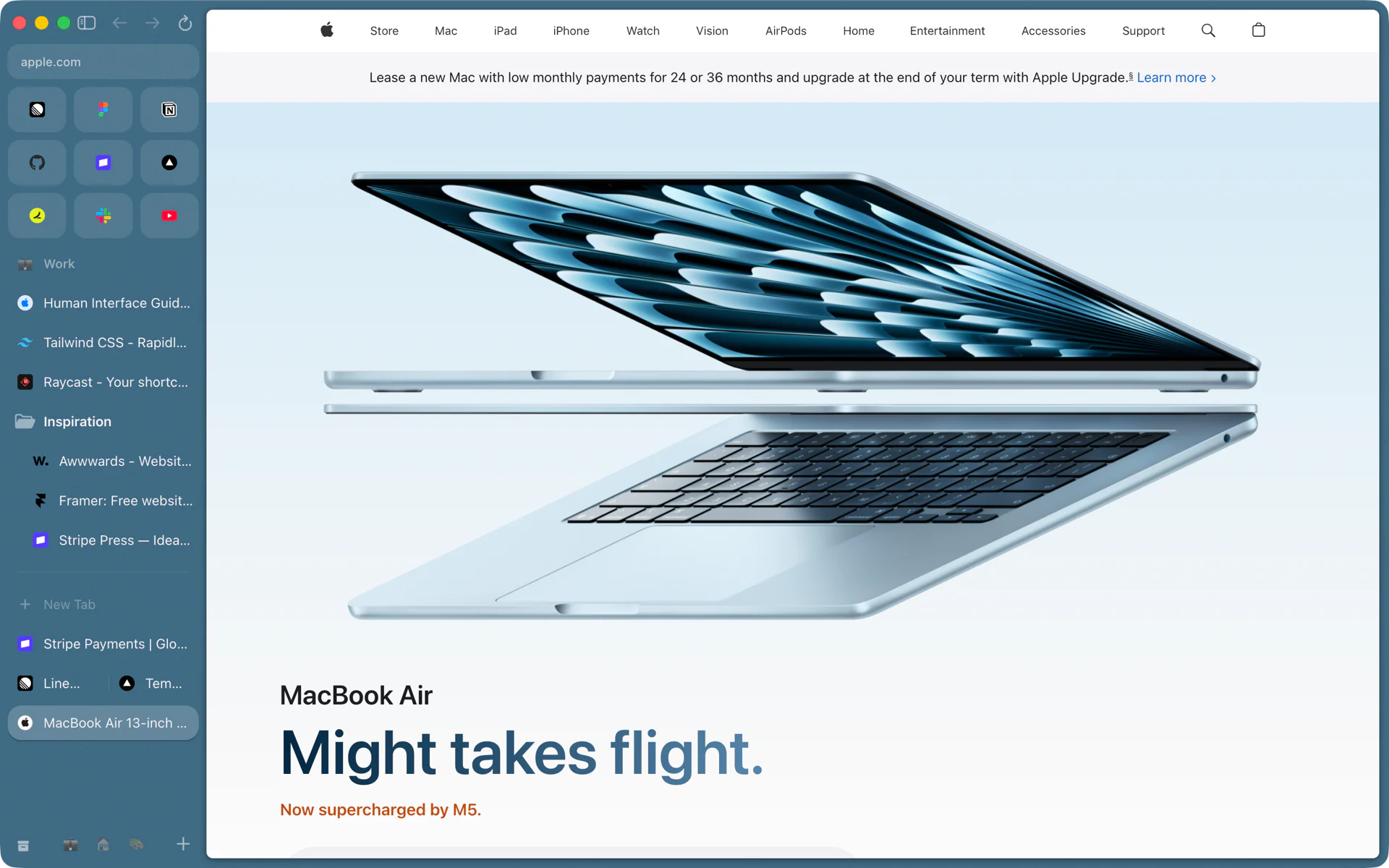
Tell your spaces apart at a glance
Your Work space is soft blue and your Studio space is mint green. Swipe from Work to Studio and the sidebar, the bar at the bottom and the window around the page turn green with you.
Change a space's theme
- Go to the space and press Cmd+T, then run Edit Theme.
- Drag the color handle around the wheel, or click one of the preset colors.
- Press plus to add a second or third color.
- Set the intensity slider and the grain dial, then press Esc to close the editor.
Every change shows in the window while you drag, and stays when you let go. The editor also opens from Spaces, Edit Theme in the menu bar, and from the Theme button in a space's editor.
What the editor holds
- A color wheel. Around the wheel is the hue; toward or away from the center is how deep the color is.
- Up to three colors. Plus adds a color across the wheel from the main one, then a third. Each handle moves on its own, so any mix of colors works. Minus takes one away.
- 45 presets. Five pages of nine swatches, from bright colors to pastels to grays. A swatch sets the theme to that one color.
- Intensity. A wavy slider; the wave grows as the color gets stronger.
- Grain. A dial from smooth to grainy. The grain is a fine noise texture over the theme, the same on every launch.
- Auto, Light and Dark at the top of the editor set Rio's appearance. Auto follows macOS.
When you first open Rio, the Pick a look step shows the same editor, grain included, so your first space starts with a look you chose.
The app icon
Settings, Icon has seven icons for Rio itself: Flat warm, the default, plus Sunset, Ocean, Flat blue, Rio sunset, Warm and Dusk. All of them are free.
Coming from Arc
Rio's Arc import brings each space over with its name, icon and theme colors. See Move from Arc to Rio.
Questions
How many colors can a space have?
One to three. The first is the main color; plus adds a second across the wheel and then a third, and you can drag each one to any color on its own.
Does a theme change how websites look?
No. It colors Rio's sidebar, the bar at the bottom and the window around the page. Pages look the way their sites made them.
How do I switch Rio to dark mode?
Click Auto, Light or Dark at the top of the theme editor, or choose View, Appearance. Auto follows macOS.
Can I change Rio's app icon?
Yes. Settings, Icon has seven app icons: Flat warm, the default, plus Sunset, Ocean, Flat blue, Rio sunset, Warm and Dusk.
Sources
- Rio source, the theme editor: color wheel, presets, intensity and grain (ThemePicker.tsx)
- Rio source, up to three colors and the five pages of nine presets (theme/picker.ts)
- Rio source, the grain texture (grain.ts)
- Rio source, Edit Theme and the appearance commands (commands/theme.ts)
- Rio source, the seven app icons (appIcons.ts)
- Rio releases, build 1446: the onboarding look step shows the grain you pick (November 12, 2026)
- Rio releases, build 1055: Pick a look during onboarding (November 10, 2026)